Checkboxes, Blank Lines and Signatures: Comparing Three Form Layouts
Understand checkboxes, blank lines and signature fields so you can match each response to its prompt and avoid guessing what an empty space means.
The common mistake with form layouts is treating every space as the same kind of request. That can lead you to select several options when only one is wanted, write where a choice was expected, or mistake an empty box for an instruction. Read the wording first; the shape of a field offers a clue, not a complete answer.
Checkboxes, blank lines and signature fields collect different kinds of responses. Their labels and nearby instructions show what each mark or entry is meant to record, whether you are filling in a public-service form or trying to understand what a completed form says.
Checkbox selections
A checkbox usually sits beside an option. The mark records a selection, while the wording beside it identifies what you selected. Read the instruction for the whole group before marking anything: it may ask you to select one option, tick all that apply or respond only if a condition is true.
Those instructions are not interchangeable. A group headed “Select one” differs from one headed “Tick all that apply”. If the instruction is missing, unclear or separated from the options by a page break, check nearby notes or the organisation’s separate guidance instead of inferring the intended number of choices from the boxes.
A checkbox can also record acknowledgement rather than preference. A box beside “I have read the information” asks you to confirm something, whereas boxes labelled with service options invite a choice. The sentence around each box helps establish what the mark means.
- Check the instruction above the group; if it says “Select one”, mark one option, but if it says “Tick all that apply”, select each option that fits.
- Check for a condition such as “If applicable”; if it applies, answer as directed, but if it does not, follow any instruction about leaving the group blank or marking “Not applicable”.
- Check whether each label is clearly linked to its box; if the layout is crowded or the link is unclear, pause and ask the issuing organisation rather than relying on position.
- Check whether “Other” has a linked writing line; if it does, use that line to explain the choice, but if it does not, follow the form’s instructions for extra information or ask how to provide it.
- Check whether the group instruction is missing or split across a page; if you can locate the relevant note, follow it, but if you cannot, ask the issuing organisation before choosing.
- Check whether the box is beside an acknowledgement; if the statement is accurate and the form asks for confirmation, mark it, but if you are unsure what it affirms, seek clarification before agreeing.
Checkboxes work well when a form needs a choice from a defined set. They are less suited to answers that need context or do not fit the listed options. Look for a writing space or an instruction about an attachment when the choices do not capture the answer.
Written answers
A blank line often invites a name, date, address, reference or short explanation. Its length may suggest the kind of response, but the prompt is what identifies the information requested. A short line may reflect page design, while a larger space may simply allow room for handwriting.
Match your answer to the exact label. “Correspondence address” may mean where the organisation can contact you; “address of the property concerned” means the place named by the application. A date field may likewise refer to an event, an application or a signature, depending on its wording.
Some spaces are reserved for an organisation, official or person completing a later stage. A label such as “For office use” makes that boundary clear. An unlabelled blank is not, by itself, a request for you to enter information.
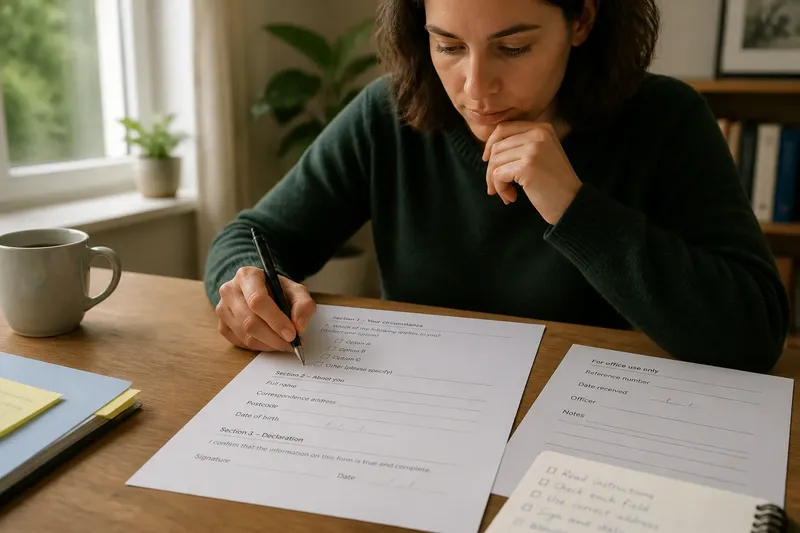
Say you are completing a council form with fields for “Your current address” and “Address of the property concerned”. You enter your contact address in the first field and the property address in the second; if they happen to be the same, each still answers its own prompt. You leave an unlabelled space untouched until its purpose is clear, rather than guessing that it asks for another address.
Written fields can capture details that do not fit a fixed list, but a long explanation may be hard to read in a small space. If the form provides a continuation sheet or attachment option, use it as directed instead of squeezing information into an unrelated field.
Signature fields
A signature line is commonly paired with a declaration, consent statement or confirmation. Read the wording above it before signing: it identifies what the signer is being asked to affirm. A signature is not a general response to every blank space on the page.
Look for associated fields such as printed name, role, date or capacity in which the person signs. These details identify the signer and, where relevant, the basis on which they are signing. A legible name may still be difficult to interpret if requested accompanying information is missing.
Forms may distinguish an applicant’s signature from a witness’s or representative’s. Follow the labels and declarations beside each line; do not use one person’s signature in place of another’s. Nor should you assume a typed name is accepted wherever a form asks for a signature. The form’s wording, the issuing organisation’s instructions and applicable local requirements determine what it accepts.
A signature does not supply a missing date, address or selection elsewhere on the form. Before submitting, check that each separate field has been answered by the person it concerns, and that requested details beside a signature are present.
Reading form layouts
What does an empty checkbox mean?
An empty checkbox shows only that no mark is visible. It does not automatically mean “no”, “not applicable” or “leave unanswered”; use the prompt and any instructions to decide how it should be treated.
Can I write beside a checkbox?
Write beside a checkbox only when the form provides a linked “Other” line or clearly instructs you to add a note. Otherwise, the organisation may not know whether the writing qualifies the choice or answers another question.
What if a blank line has no label?
Check nearby text, section headings and page instructions for the field’s purpose. If it remains unclear, ask the issuing organisation rather than guessing or entering information that may belong to someone else or a later stage.
Does a signature complete the other fields?
No. A signature relates to the declaration or confirmation beside it; it does not ordinarily fill unanswered choices or details elsewhere. Treat each prompt as a separate request unless the form explicitly links them.
Matching prompts and spaces
Start with the prompt, then use the layout to identify the response it requests. A checkbox suggests a selection, a blank line suggests written information and a signature line suggests confirmation or responsibility. These are clues, not rules that override the printed wording.
Next, check how each space relates to its neighbours. A heading may govern a whole group of boxes; a small label may distinguish one address from another; a declaration may explain what a signature confirms. Follow those connections rather than answering from a field’s shape alone.
It is not worth trying to infer a form’s hidden meaning from line length, box size or visual neatness. Those details may reflect formatting rather than the answer expected. Give your attention instead to the labels, instructions and links between each prompt and response.
If a prompt remains ambiguous, pause before entering information that could change the meaning of the submission. Ask the organisation that issued the form, naming the unclear heading or describing the field. For a clear reading of form layouts, match each mark, written answer and signature to the wording that governs it, and leave an unexplained space untouched until its purpose is known.